Short answer: a gesture wall needs a large display or projector, a depth/body-tracking camera, and a Windows PC with a dedicated GPU (Core i7 class, 16-32 GB RAM, SSD is a sound baseline). Plan roughly a 3 × 3 m clear tracking zone, keep spectators outside it, and avoid mirrors, direct sunlight and strong backlight. Since Microsoft discontinued Azure Kinect in 2023, Orbbec's Femto Bolt is the most direct replacement.
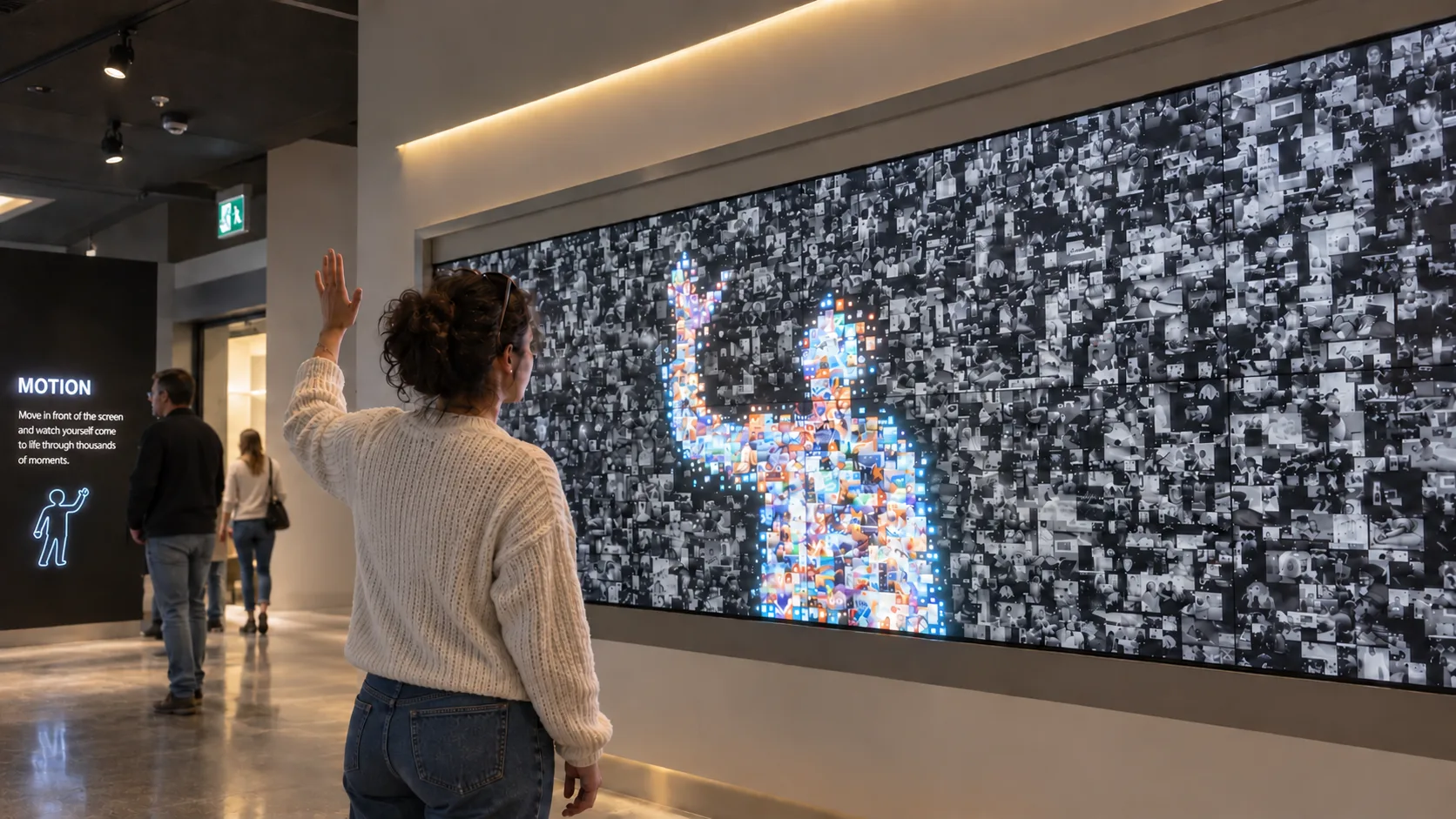
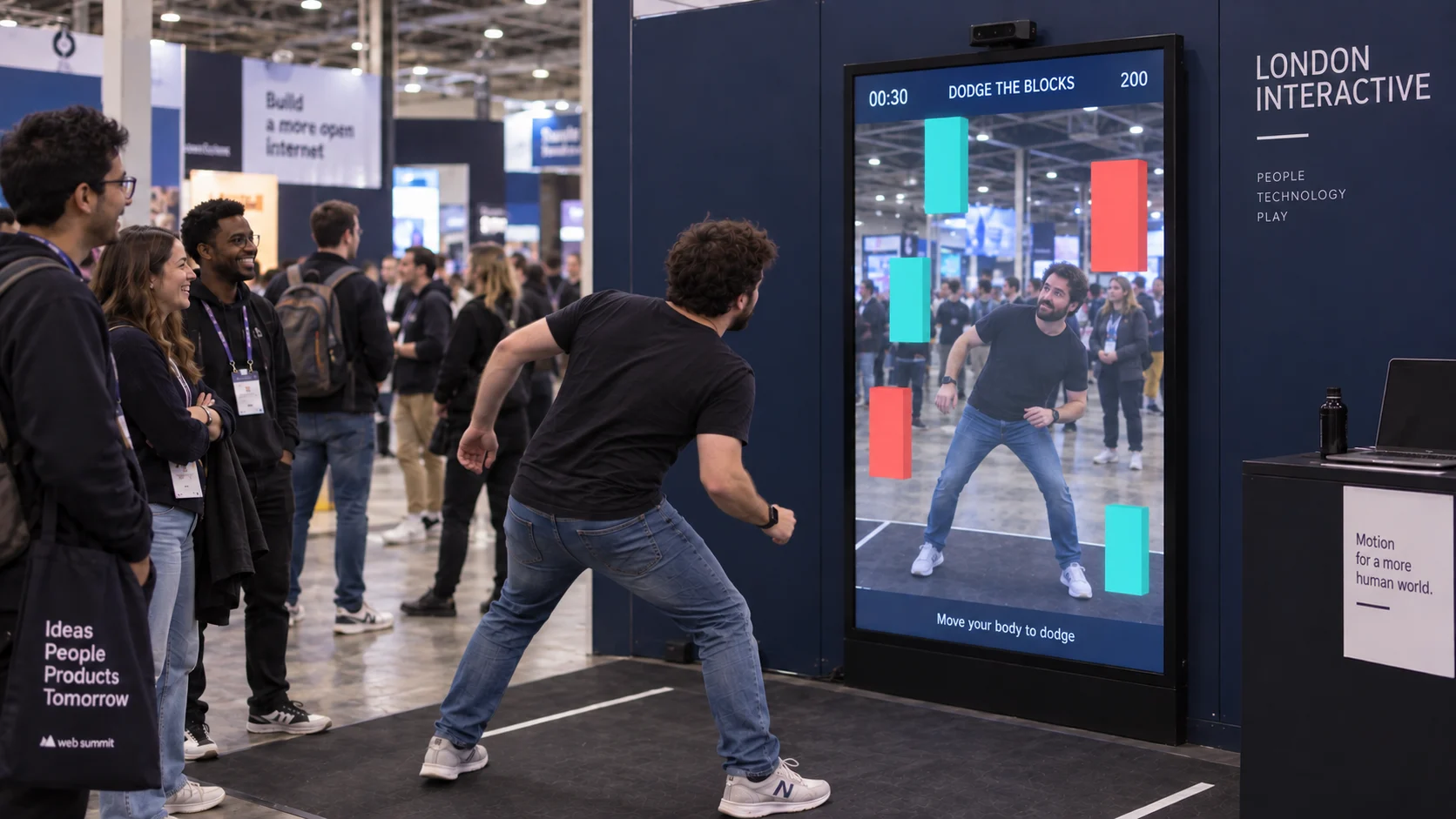
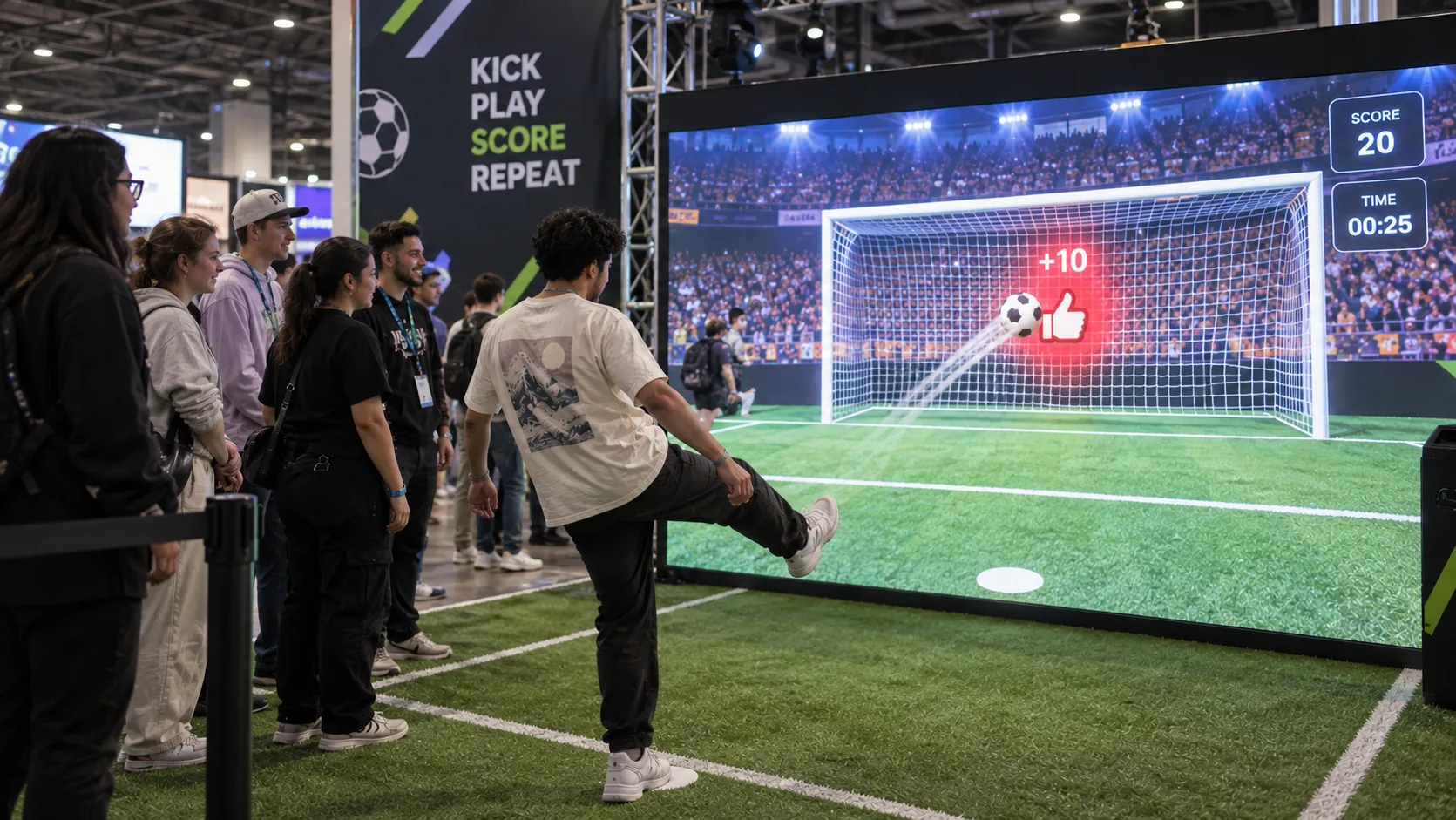
Gesture walls turn the visitor's body into the controller. People step in front of a screen, wave, reach or jump, and the display responds. They draw crowds at launches, exhibitions and retail flagships because watching someone play is almost as engaging as playing.
When a gesture wall is the right choice
Good fit:
- Events and activations where you want a crowd-pulling moment
- Spaces where hygiene or durability rules out touchscreens
- Large-format displays people view from a distance
- Playful learning: movement-based games for children
Poor fit:
- Detailed reading or browsing (use a touchscreen kiosk instead)
- Very small spaces without room for a tracking zone
- Bright outdoor or glass-walled locations with direct sun
Step 1: Choose the sensor
Most gesture installations use a depth camera that sees people in 3D and tracks body skeletons.
The Azure Kinect question. For years, Microsoft's Kinect was the default. Microsoft ended Azure Kinect production in 2023 and transferred the technology to partners. Orbbec's Femto Bolt is the closest successor: it uses the same time-of-flight depth technology, has identical depth operating modes, and Orbbec provides a wrapper so software written for the Azure Kinect SDK, including Microsoft's Body Tracking SDK, can run on it.
What to consider when choosing a sensor:
- Range and field of view relative to your tracking zone
- Body tracking support in your software
- Mounting: above or below the screen, angled toward the zone
- Cable length: USB runs are limited; plan the PC position or use active extension
- Supply: buy a spare for permanent installations
In WEEV's Motion Block, the selected template defines the motion behaviour and the Block's setup spec lists supported sensors.
Step 2: Plan the PC and display
| Component | Recommendation |
|---|---|
| Display | Large commercial display, LED wall or projector |
| PC | Windows, Core i7 class, 16-32 GB RAM, SSD |
| GPU | Dedicated graphics card; body tracking is GPU-intensive |
| Sensor mount | Secure and tamper-proof, with calibration access for operators |
Body tracking and real-time visuals together are demanding. Under-powering the PC is the most common cause of lag, which makes gesture experiences feel broken.
Step 3: Design the tracking zone
- Size: plan about 3.0 × 3.0 m of clear floor for single-player experiences; more for multi-player.
- Mark the floor. A printed zone or footprints tell people where to stand.
- Keep spectators out. People walking behind or beside the player confuse tracking. Use barriers, a raised edge or layout to keep the audience outside the zone.
- Circulation: keep emergency routes and service clearances outside the active area.
Step 4: Control the environment
Depth cameras use infrared light, so:
- Avoid direct sunlight on the zone or into the sensor.
- Avoid mirrors and highly reflective surfaces facing the sensor.
- Watch backlighting. A bright window behind visitors degrades tracking.
- Test with real clothing. Very dark or reflective materials can affect some sensors.
Step 5: Design content for movement
- Instant feedback. The screen must respond within a fraction of a second of someone stepping in.
- Big, forgiving gestures. Wave, reach, lean and jump beat fine hand poses.
- Short sessions. 30-90 seconds lets queues move.
- Attract loop. An idle animation that reacts when someone walks past.
- Show the player. A silhouette or avatar helps people understand they're in control.
- Accessibility. Offer interactions that work seated or with limited mobility.
With WEEV Motion, you pick a template and adapt images, colours, styling and logo placement to your brand.
Step 6: Calibrate and test
- Calibrate the sensor in the final lighting conditions, not the workshop.
- Test with adults, children and groups.
- Test with spectators moving around the edges.
- Run for a full day to check stability, heat and automatic restart.
- Give on-site staff a simple recalibration procedure.
Step 7: Measure engagement
Track sessions, session length and peak times to prove value to the client and to tune content between activations. WEEV Player provides engagement analytics; wired internet is recommended for analytics and remote support.
Frequently asked questions
What is the best Azure Kinect replacement for interactive installations? Orbbec's Femto Bolt is the closest replacement. It shares the Azure Kinect's depth technology and operating modes, and supports Azure Kinect SDK applications through Orbbec's wrapper.
How much space does a gesture wall need? Plan roughly 3 × 3 m of clear tracking area for one player, plus space for spectators outside the zone.
Can gesture walls work outdoors? Depth cameras struggle in direct sunlight. Shaded or indoor locations are strongly recommended.
What PC do I need for a gesture-controlled display? A Windows PC with a Core i7-class CPU, 16-32 GB RAM, an SSD and a dedicated GPU is a reliable baseline for body tracking plus real-time visuals.
Can I use a projector instead of a screen? Yes. Projection works for large walls and floors, but needs controlled lighting and careful sensor placement so the player doesn't block the image.
Plan your gesture installation: see the Motion Block, download its technical setup spec, or talk to us.