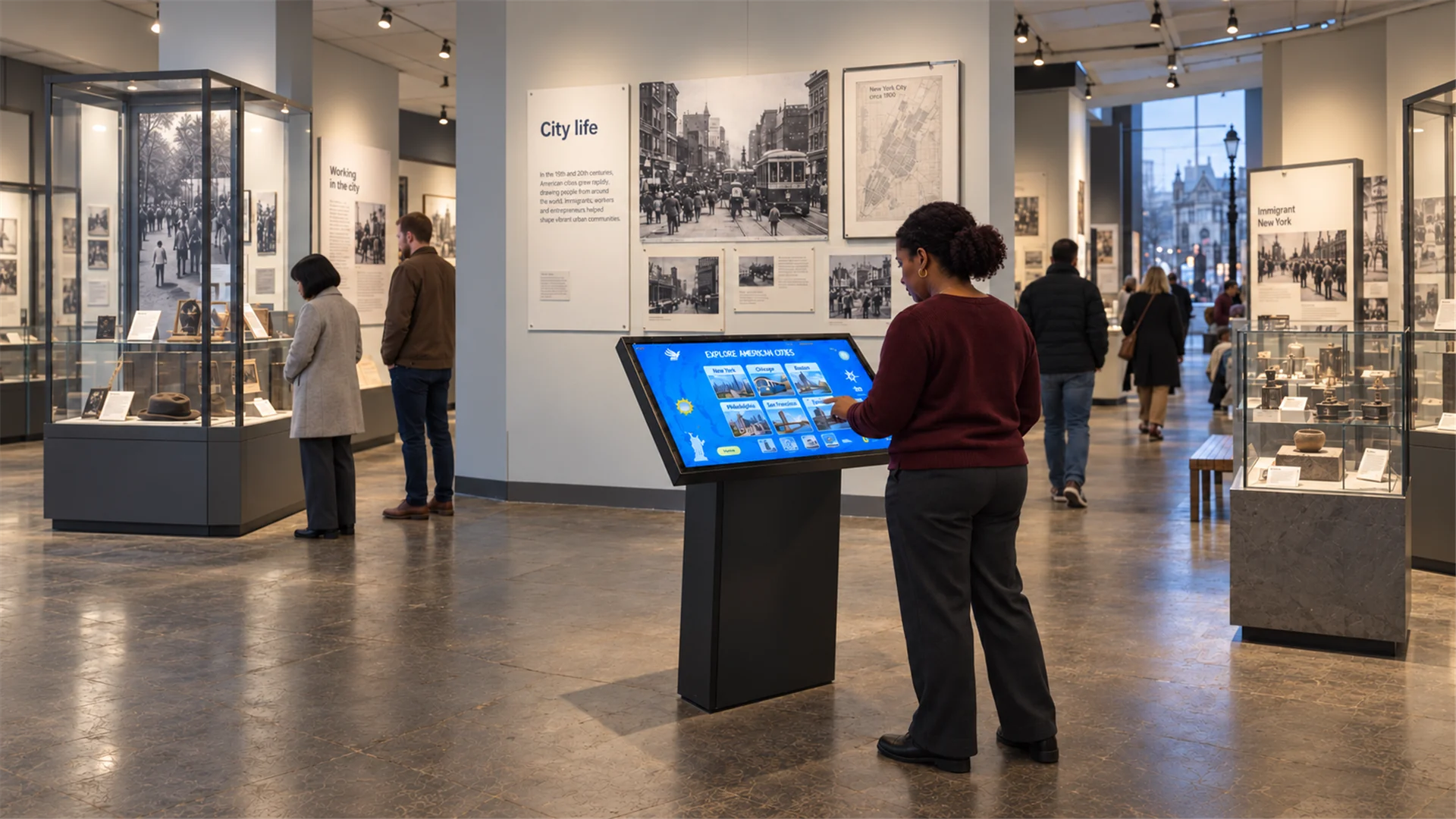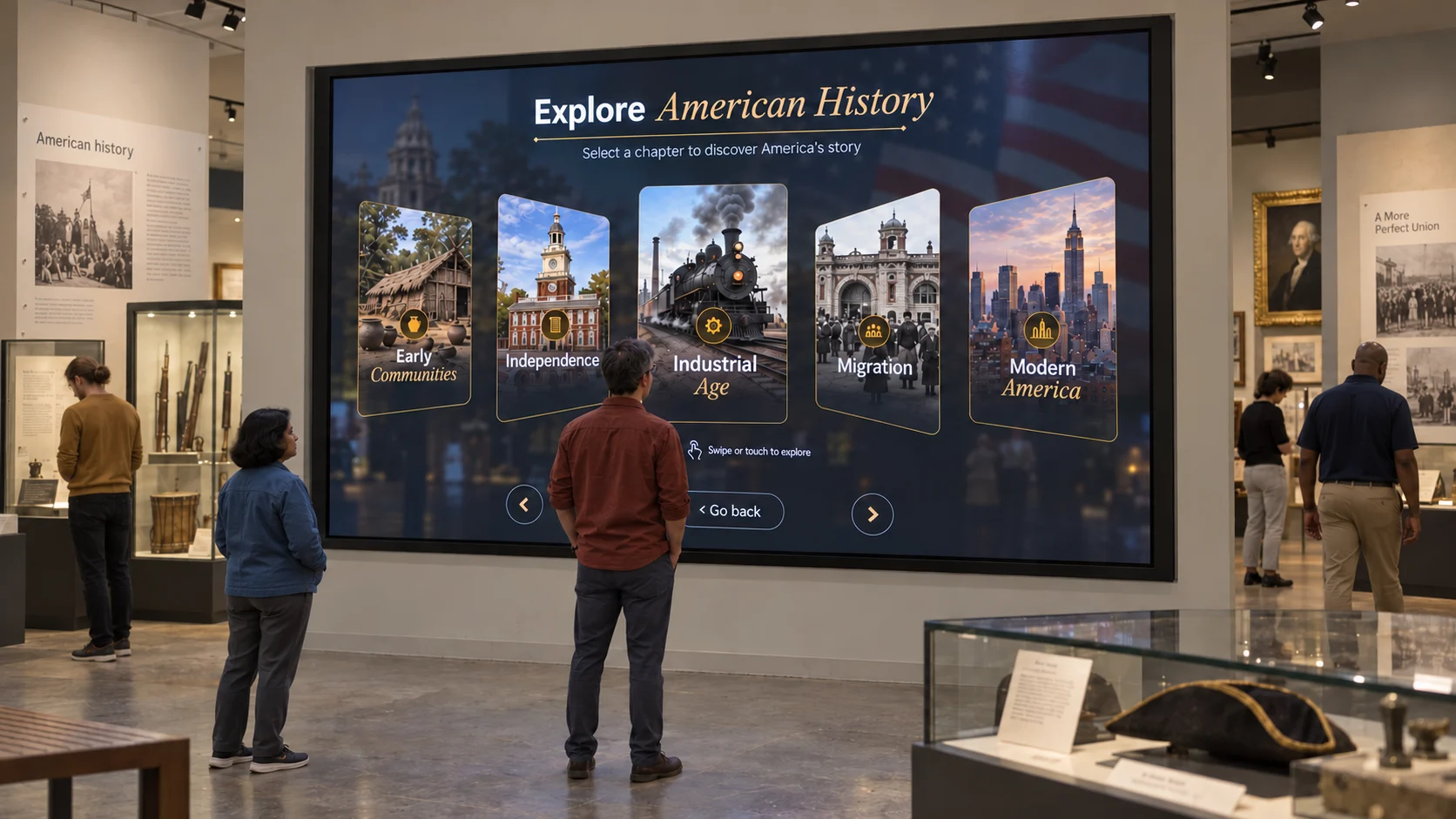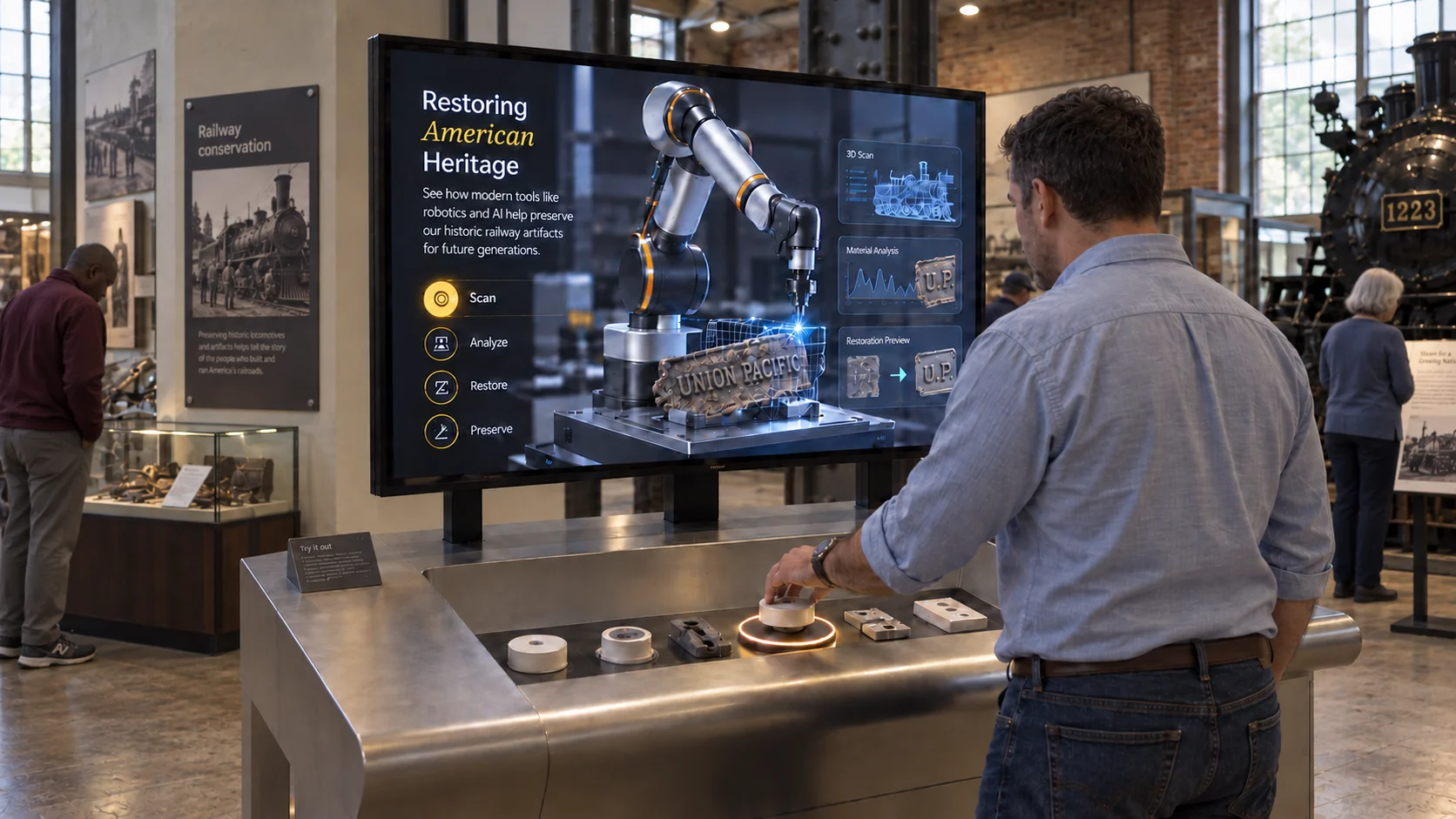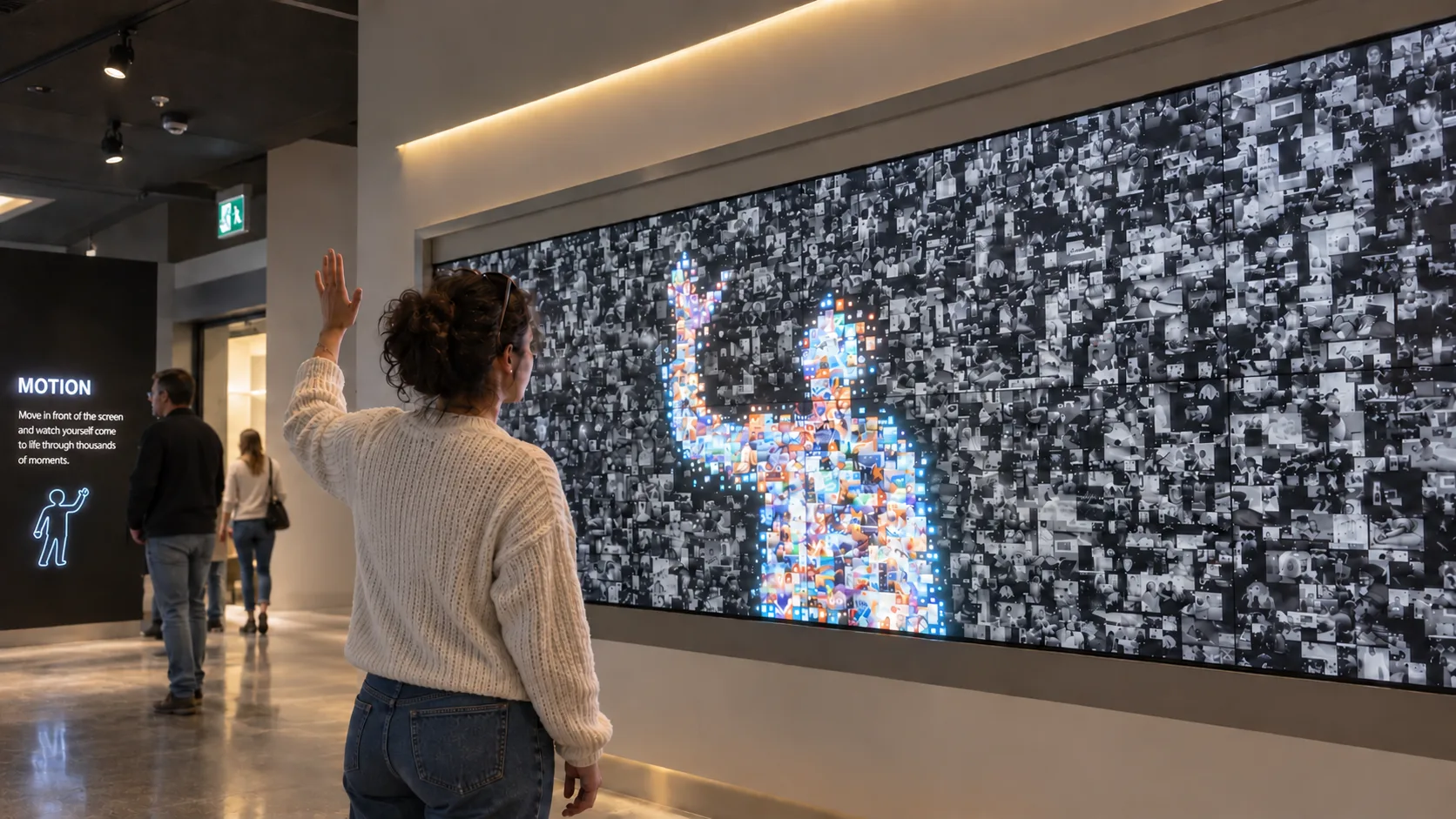
Short answer: reliable installations are designed to run without the internet, start themselves after a power cut, never show a desktop or update prompt to visitors, and give staff a simple way to recover. Most failures on site aren't software bugs. They are Windows updates, sleep settings, loose USB cables, dirty power and content nobody tested on the final hardware.
An interactive that works on opening day but fails in week three damages trust in the whole gallery. Here's the checklist we use when handing over exhibits that need to run for months or years with minimal attention.
1. Design for offline first
Many museums, heritage sites, exhibition halls and temporary venues have weak or no internet. Treat connectivity as a bonus, not a dependency.
- All content stored locally on the playback PC.
- The experience starts and runs with the network unplugged. Test this explicitly.
- Confirm analytics behaviour: ask whether the selected system queues data locally or requires a live connection. Do not assume offline buffering.
- Licence checks shouldn't stop the experience if the network drops. Ask your vendor how their licensing behaves offline.
WEEV Studio manages content locally. Confirm the selected Player configuration, licensing and any AI-service dependencies before committing to offline operation. Player provides online analytics; do not assume offline event buffering. Test the actual installation with and without the intended network.
2. Lock down the PC
Visitors should never see Windows.
- Kiosk mode: use Windows Assigned Access or Shell Launcher (on supported editions) so the device boots straight into the experience.
- Auto-login to a dedicated local account with minimal permissions.
- Disable sleep, screen timeout and screensavers.
- Control Windows Update: schedule updates for maintenance windows or defer them, so the PC never restarts mid-day or shows prompts.
- Hide notifications and disable edge swipes, touch keyboard pop-ups and gestures that exit the app.
- BIOS: power-on after power loss so the PC restarts itself when mains returns.
3. Recover automatically
Something will crash eventually. Make recovery automatic.
- Auto-start the experience on boot.
- Watchdog: a scheduled task or service that relaunches the app if it closes.
- Scheduled daily restart outside opening hours clears memory and resets hardware.
- Session reset: the experience returns to its idle state after a period without interaction.
4. Power and cabling
- Clean, stable mains with surge protection. A UPS is worth it for high-value installations.
- An accessible isolation point so staff can power-cycle safely.
- Secure USB connections: locking cables or cable clamps, and powered hubs for multiple devices.
- Separate signal and power runs where practical to reduce interference.
- Label everything: both ends of every cable.
- Ventilation: PCs inside cabinets overheat. Plan airflow and check temperatures at the end of a busy day.
5. Hardware you can service
- Service access to the PC, sensors and readers without dismantling the exhibit.
- Spares on site for critical parts: a sensor, an RFID reader, cables, a mouse and keyboard.
- Commercial-grade displays rated for long daily operation.
- Document the setup: make, model, settings and firmware of every device.
6. Test like it's opening week
Before handover:
- Full-day soak test on the final hardware and in final lighting.
- Pull the plug mid-session and confirm the whole system recovers unaided.
- Disconnect the network and confirm nothing breaks.
- Unplug and replug each USB device.
- Test with real visitors, not just the team.
7. Make updates safe
- Preview changes before publishing on the same hardware and resolution.
- Keep a backup of the last working content version.
- Update outside opening hours.
- Keep a change log of who changed what, and when.
In WEEV, content is updated in Studio and previewed before it's prepared for Player, so changes can be checked before they reach visitors.
8. Hand over to people, not just machines
The people running the space need a one-page runbook:
- How to switch the exhibit on and off
- How to restart it if it freezes
- How to recalibrate a sensor, if applicable
- Who to call, and what information to send (photo of the screen, time it happened)
9. Monitor and maintain
- Remote access, where the venue's IT policy allows, speeds up support.
- Check analytics weekly. A sudden drop in sessions often means something is broken before anyone reports it.
- Monthly check: clean screens and sensors, check cables, review logs, apply pending updates in a maintenance window.
Frequently asked questions
Can interactive exhibits run without internet? Yes, if the software is designed for local playback. Store all content on the device, test with the network unplugged, and confirm licensing and analytics behave correctly offline.
How do I stop Windows updates interrupting a kiosk? Schedule or defer updates to maintenance windows, set active hours to cover opening times, and apply updates manually during planned visits for critical installations.
What's the most common cause of interactive exhibit failure? In our experience: system updates and sleep settings, loose or unpowered USB connections, overheating in enclosures, and content that wasn't tested on the final hardware.
How often should an interactive installation be maintained? A light monthly check (cleaning, cables, logs, updates) plus remote monitoring suits most permanent installations. High-traffic sites may need weekly checks.
Does a PC need to restart daily? It isn't mandatory, but a scheduled overnight restart is a simple, effective way to prevent gradual slowdowns in installations running long hours.
Planning a permanent installation? Ask the WEEV team about a perpetual licence and the supported Player setup. Talk to us about your setup.